Cargo Optimizer Enterprise/Network
Maximize your shipping with Cargo Optimizer save money and time.
|
Cargo Optimizer Enterprise/Network handles regularly shaped containers such as ocean containers, trucks and refrigerated units. There are two minor version of Cargo Optimizer Enterprise : Enterprise handles all shaped containers such as ocean containers, trucks, Pallet, Air containers and refrigerated units. work with carton/box, pallets, cylinders and UnitLoads. Network handles all shaped containers such as ocean containers, trucks, Pallets, Air containers and refrigerated units. work with carton/box, pallets, cylinders and UnitLoads. Plus keep database on server computer. and still can use as standalone version with database in local computer Plus it offers several advanced options such as:
|
|
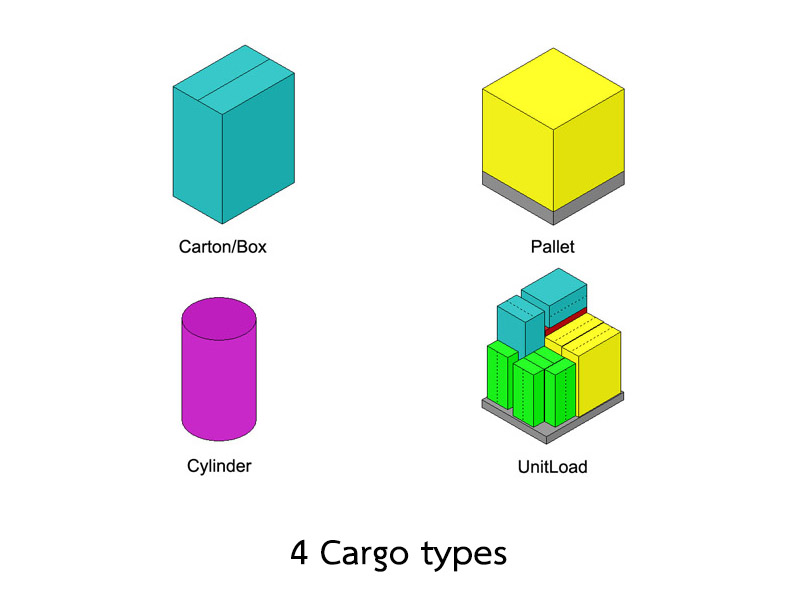
4 Cargo types | |
|
Enterprise version support to 4 types of cargo. | |
| Top | |
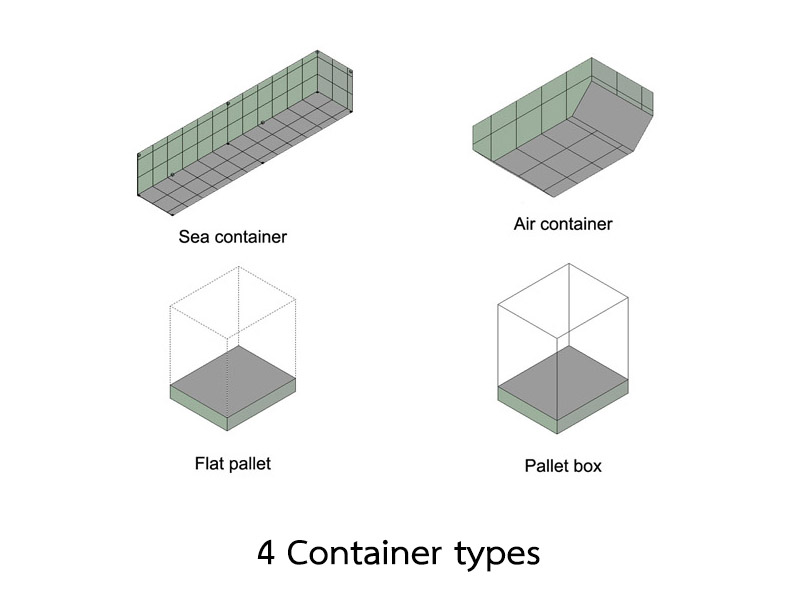
4 Container types | |
|
Enterprise version support to 4 types of container. | |
| Top | |
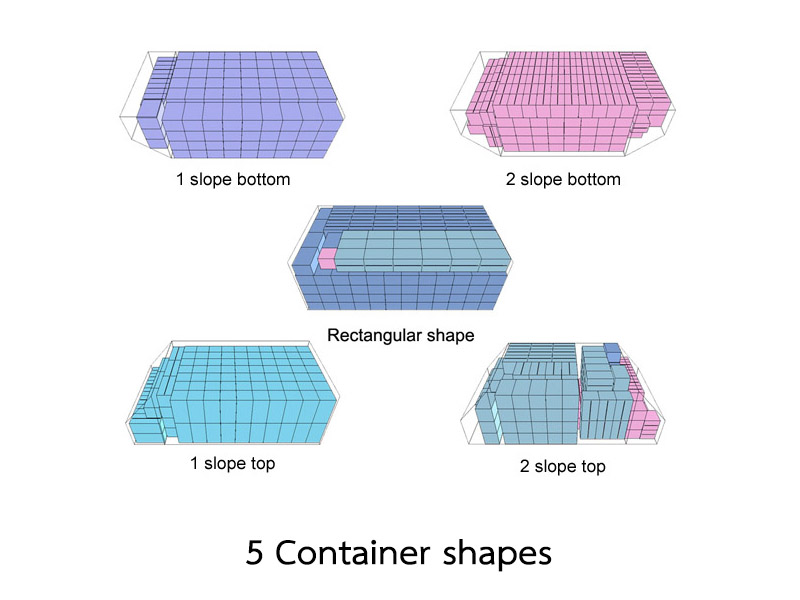
5 Container shapes | |
|
Enterprise version support to 5 shapes of container. | |
| Top | |
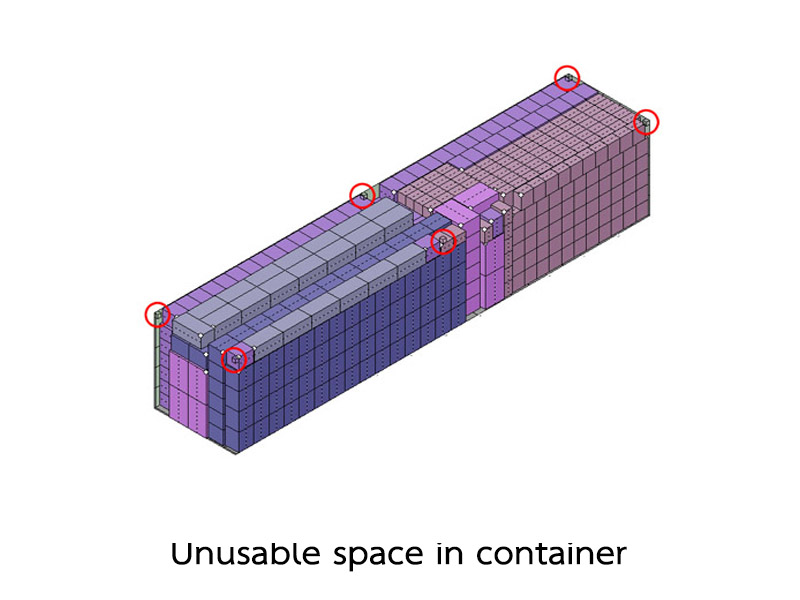
Unusable space in container | |
|
User can define unusable space in container | |
| Top | |
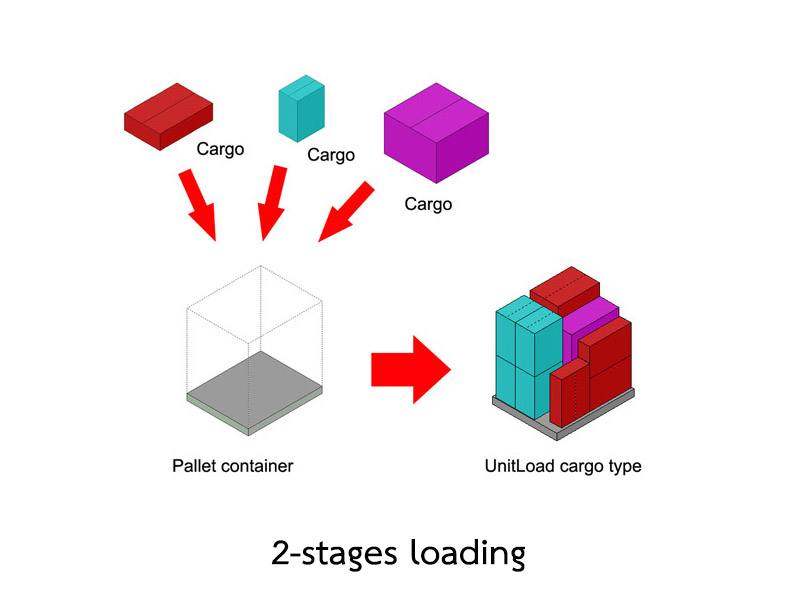
Save loaded pallet as UnitLoad cargo type (2-stages loading) | |
|
User can save loaded pallet as new cargo. This cargo type is UnitLoad. It will have detail of all cargo on pallet. User can use this feature for 2-stages loading. Start with load cargo into pallet, then save loaded pallet as new cargo, finally use UnitLaod to load into container again. | |
| Top | |
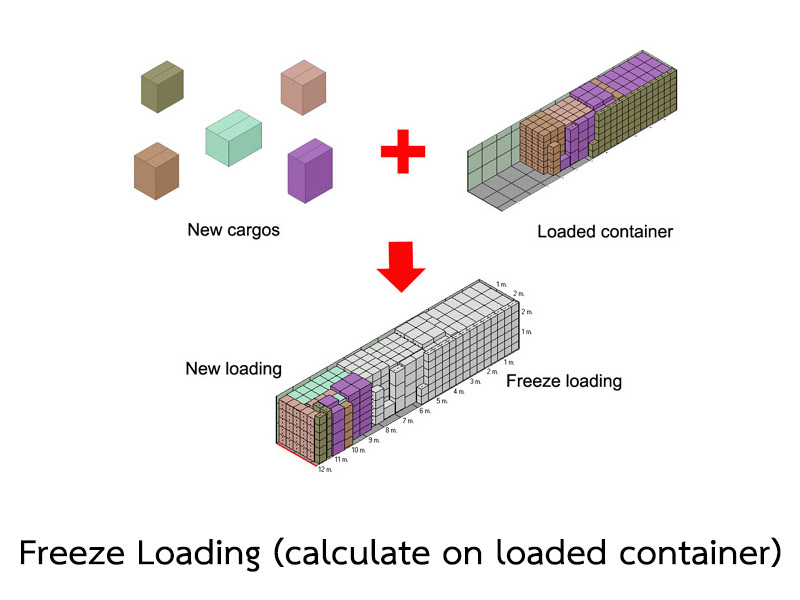
Freeze Loading (Recalculate on loaded container) | |
|
User can recalculate new cargos in loaded container output by use Freeze loading option. | |
| Top | |
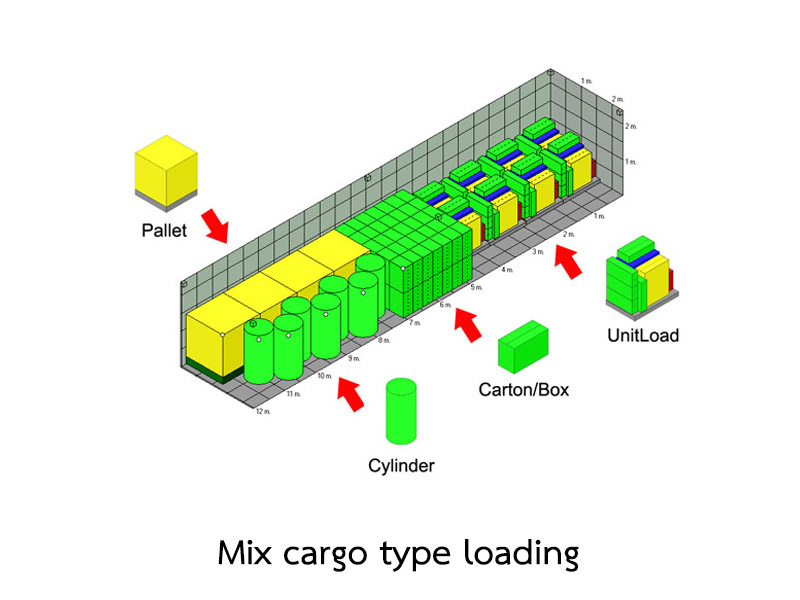
Mix cargo type loading | |
|
User can create shipment with mixing of all cargo types. | |
| Top | |
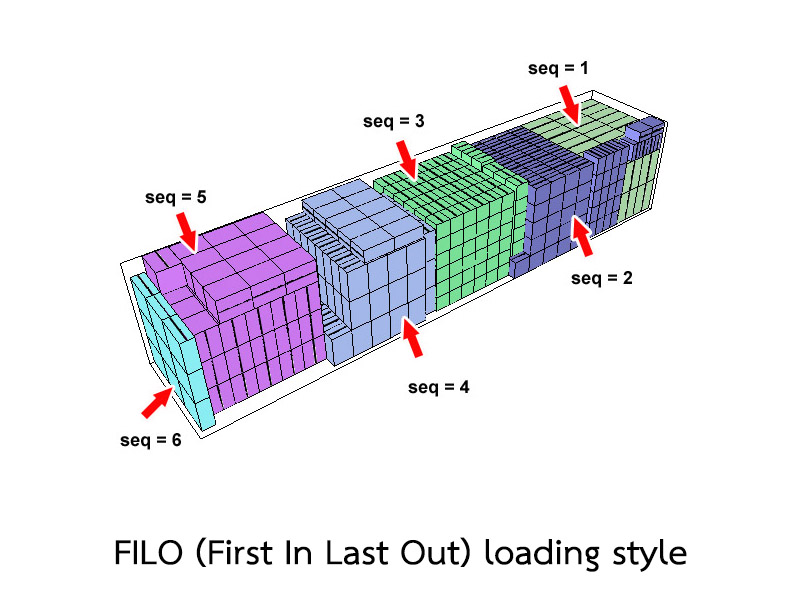
FILO (First In Last Out) loading style | |
|
With FILO loading rule option, software load cargo in deep of container by place lower sequence number to inside of container. | |
| Top | |
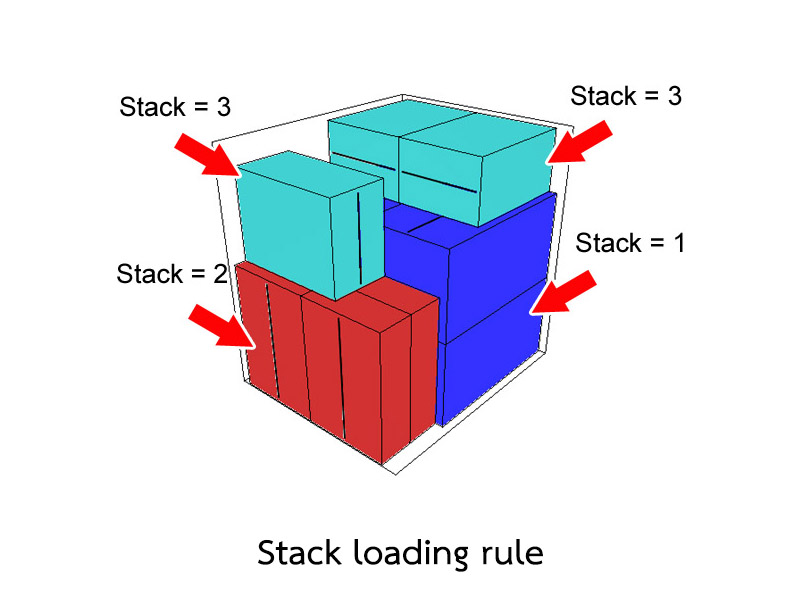
Stack loading rule | |
|
With stack loading rule option, software will place cargo by use lower stack value on bottom of more stack value. | |
| Top | |
Find best container | |
|
If you enter more than one container to shipment, you can use option to calculate for best container from your list. | |
| Top | |
Auto container quantity | |
|
If you use Best container option, you also can choose to auto container quantity option. With this option software will automatic add container quantity until load all cargo. | |
| Top | |
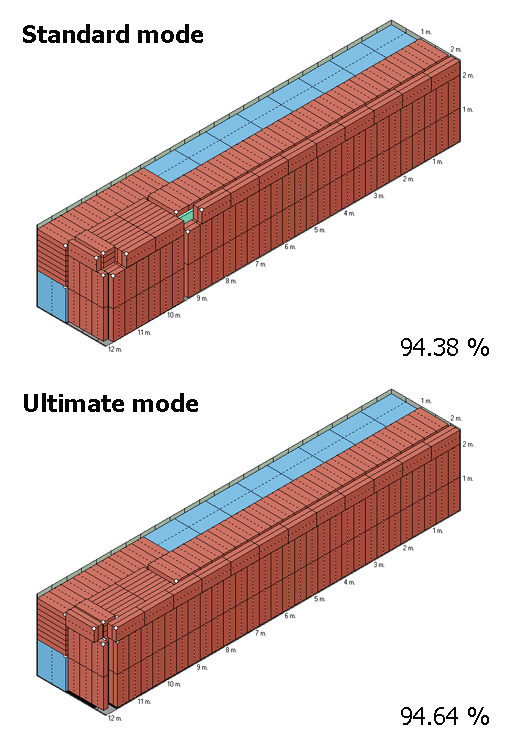
Ultimate mode calculation | |
|
Ultimate mode is special calculation mode by push all loaded cargo inside and recalculate on new available space. It can make more load efficiency in some loading case. | |
| Top | |
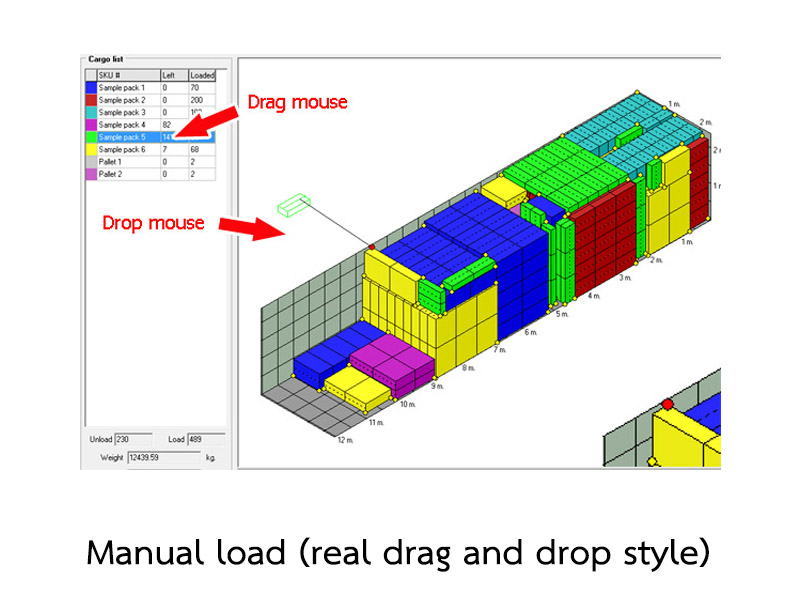
Manual load (drag and drop) | |
|
New style manual load with drag and drop. It's very easy to design and edit any load style as you need. | |
|
Options to help you manage your loading style as you need. | |
| Top | |
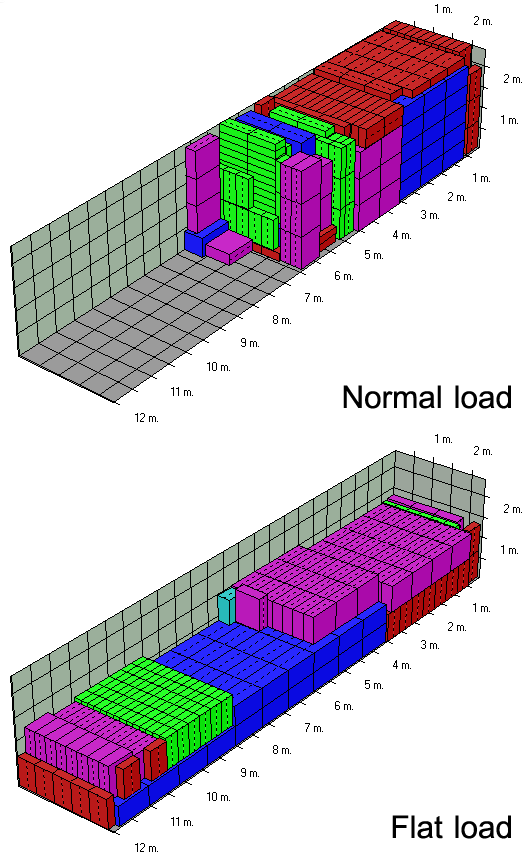
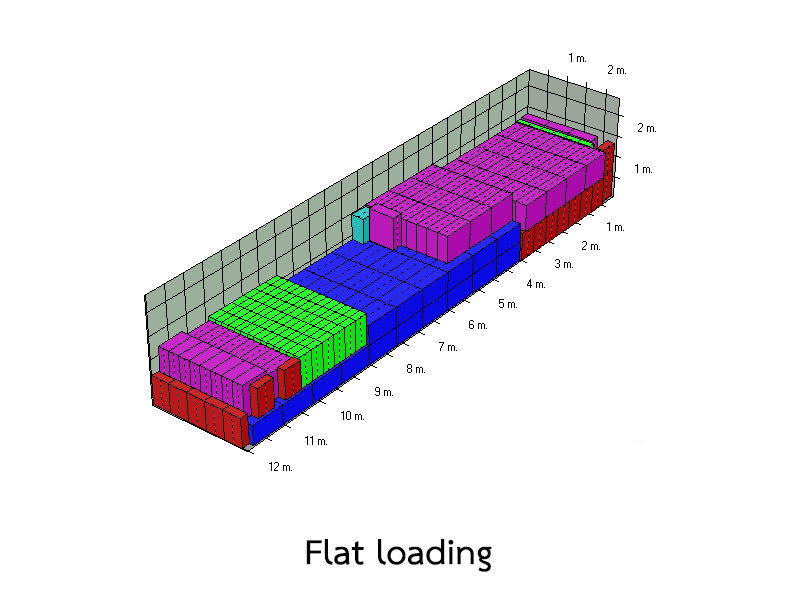
Flat loading | |
|
Flat load option to set load style as flat loading. Best result for not full container loading. | |
| Top | |
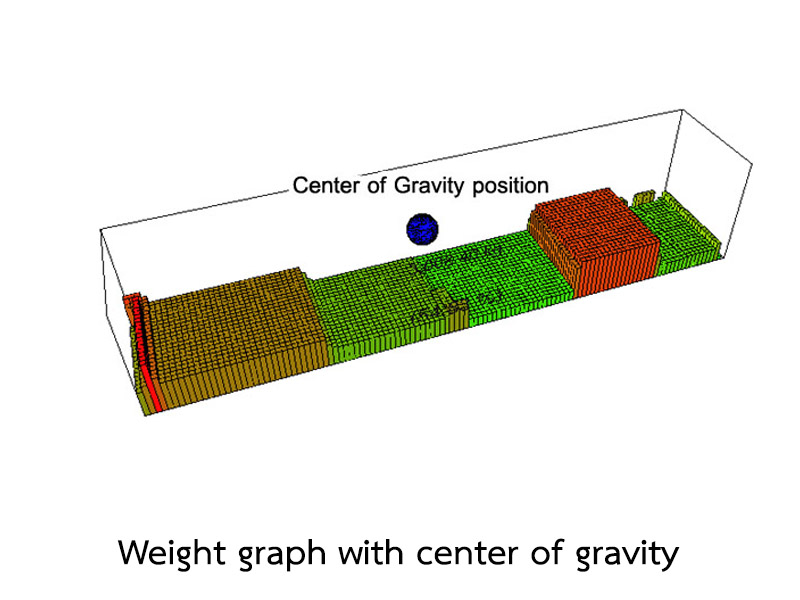
Real 3D weight graph with center of gravity position | |
|
Real 360 degree rotation just click on load plan picture and drag your mouse to rorate 3D graph and center of gravity position (blue ball). | |
| Top | |
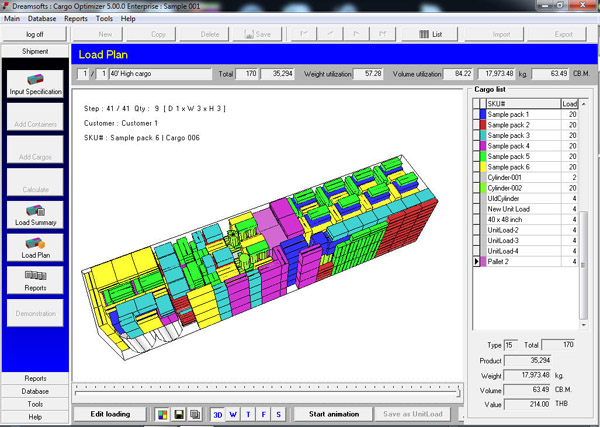
Real 3D load plan | |
|
Real 360 degree rotation just click on load plan picture and drag your mouse to rorate view. | |
| Top | |
No overhang loading option | |
|
No overhang loading option to allow or not allow overhang cargo. | |
| Top | |
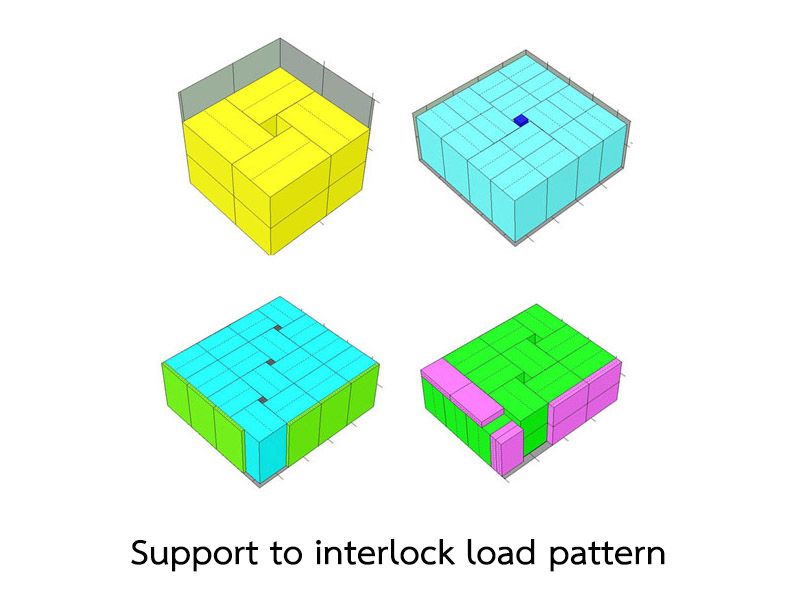
Support interlock loading | |
|
support interlock styles. It's give more load efficiency in some case. | |
| Top | |
Edit loading output | |
|
In Load Plan view you can click edit loading button to send current container to re-arrange in manual load module. | |
| Top | |
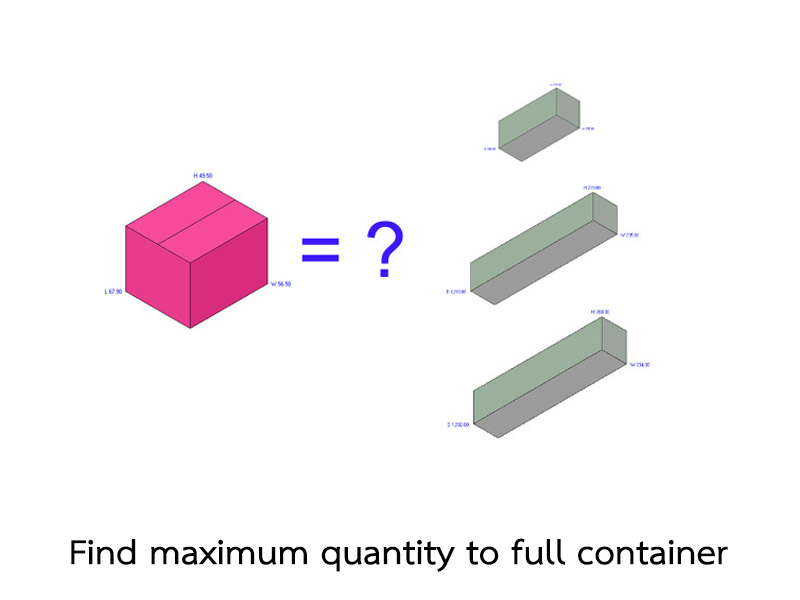
Find maximum quantity to full container | |
|
Cargo Optimizer come with feature to calculate for maximum quantity for single cargo to full any containers. With this function user can calculate for maximum quantity of cargo by enter quantity = 1 in Input Specification page. Software will calculate for maximum number to full container. | |
|
For sample, if we have cargo A, and want to calculate for maximum number to full 20' /40' / 40' HQ container. We just enter qty 1 for cargo A | |
|
and Container list you enter 20' /40' / 40' HQ container | |
|
On load option use Max quantity for group loading. Software will calculate for maximum set that can full container. | |
|
After finish calculating, software will show quantity for full container for each container. | |
| Top | |
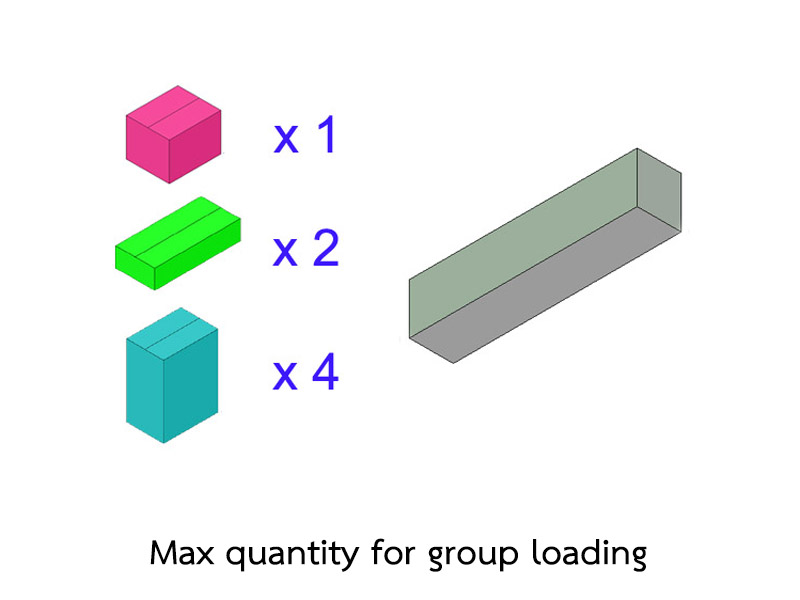
Max quantity for group loading | |
|
Cargo Optimizer come with feature to calculate for maximum capacity for group cargo. | |
For sample, if we have cargo that separate box for each part likes this: | |
|
And on load option use Max capacity for group loading . Software will calculate for maximum set that can full container | |
|
After finish calculating, software will show maximum set of cargo. | |
| Top | |
Weight distribution | |
|
In Load Plan view you can click on W button to show weight distribution in container. | |
number on each corner is weight on each. Bold number is weight on each side | |
| Top | |
Carton Designer (Design carton from product) | |
1. Use to design carton from one piece of product. | |
7. User can define partitions (materials between products in carton) inside carton both internal partitions (product and product) and external partitions (products and carton). | |
| Top | |
Cut loading output | |
|
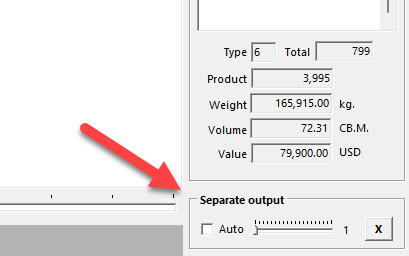
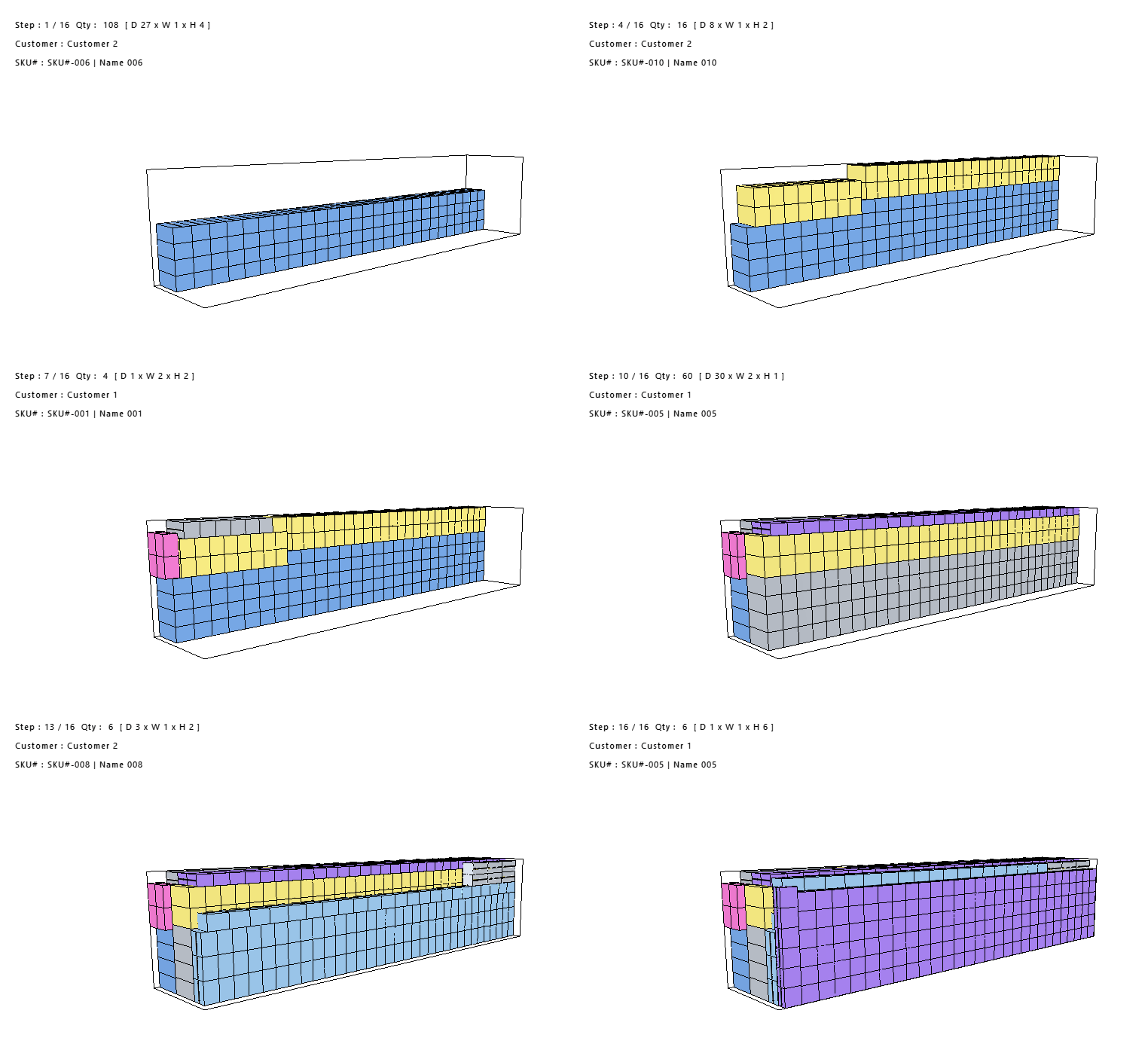
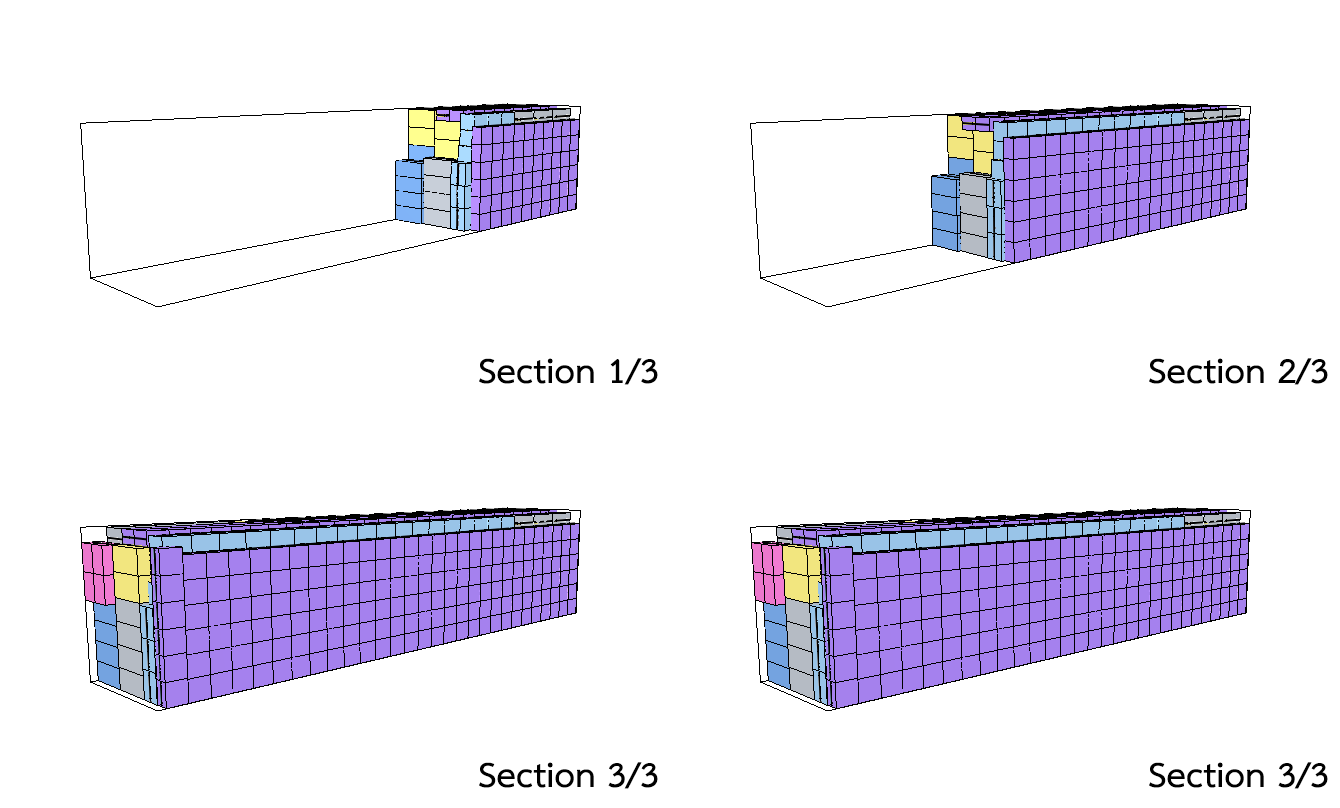
In some loading case. Cargo will arrange to depth of container. This loading style very confuse to load in real life. We have option to cut (seperate) loading output as limit section. | |
|
| |
| |
| |
| Top |